
Table of Contents
Table of contents
Introduction to Raspberry Pi Pico Gaming
The Raspberry Pi Pico, built around the RP2040 microcontroller, has revolutionized DIY electronics projects with its affordability and versatility. When combined with the Pico Display pack, it becomes a perfect platform for retro gaming projects. In this comprehensive guide, we’ll walk through creating the classic Snake game using MicroPython, demonstrating how to leverage the Pico’s capabilities for interactive gaming applications.
Hardware Requirements
Essential Components
- Raspberry Pi Pico board
- Pico Display Pack (240×135 IPS LCD with buttons)
- Micro-USB cable for programming and power
- Breadboard and jumper wires (optional for prototyping)
Hardware Specifications
- Display: 240×135 pixel 1.14″ IPS LCD
- Input: 4 tactile buttons (A, B, X, Y)
- Processor: RP2040 dual-core ARM Cortex-M0+
- Memory: 264KB SRAM, 2MB flash
Setting Up the Development Environment
Software Requirements
- Thonny IDE or any MicroPython-compatible editor
- Raspberry Pi Pico MicroPython firmware
- Pimoroni MicroPython libraries
Installation Steps
- Flash the latest MicroPython firmware to your Pico
- Install Pimoroni’s MicroPython libraries
- Configure your IDE for Pico development
- Test basic display and button functionality
Game Architecture Overview
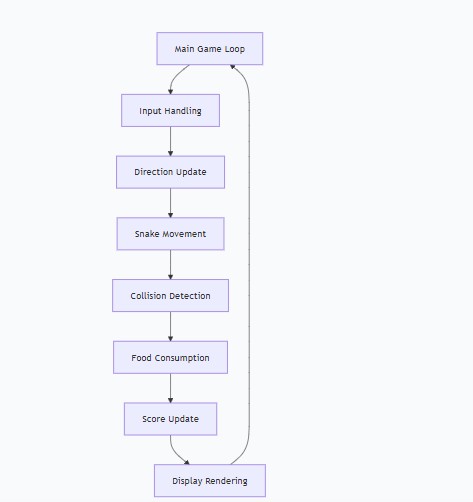
The game follows a modular architecture with these key components:
- Display Management: Handles graphics rendering
- Input System: Processes button presses
- Game Logic: Manages snake movement and rules
- Collision System: Detects self-collisions
- Food System: Handles food generation and consumption
ey Points:
- PEN_RGB565 provides 16-bit color depth for vibrant graphics
- Display bounds are dynamically retrieved for portability
- Button pins are pre-configured for Pico Display pack
Color System Implementation
# Color palette definition
BLACK = display.create_pen(0, 0, 0)
WHITE = display.create_pen(255, 255, 255)
GREEN = display.create_pen(0, 255, 0)
RED = display.create_pen(255, 0, 0)
BLUE = display.create_pen(0, 0, 255)Optimization Note: Pre-creating pen objects improves rendering performance by eliminating repeated color creation calls.
Display and Graphics Programming
Grid-Based Rendering System
CELL_SIZE = 8
GRID_WIDTH = WIDTH // CELL_SIZE  # 30 cells
GRID_HEIGHT = HEIGHT // CELL_SIZE # 16 cellsThis grid system provides:
- Predictable movement in discrete steps
- Efficient collision detection using coordinate comparisons
- Consistent visual alignment across the display
Rendering Pipeline
def draw(self):
    # Clear screen with black background
    display.set_pen(BLACK)
    display.clear()

    if self.game_over:
        self.draw_game_over()
    else:
        self.draw_food()
        self.draw_snake()
        self.draw_score()

    # Update display
display.update()Performance Optimization: The display uses double-buffering to prevent screen tearing and ensure smooth visual updates.
Input Handling and Controls
Direction Control Logic
def update_direction(self):
    if button_x.is_pressed and self.direction != (0, 1):  # Up
        self.direction = (0, -1)
    elif button_b.is_pressed and self.direction != (0, -1):  # Down
        self.direction = (0, 1)
    elif button_a.is_pressed and self.direction != (1, 0):  # Left
        self.direction = (-1, 0)
    elif button_y.is_pressed and self.direction != (-1, 0):  # Right
self.direction = (1, 0)Anti-Reversal Protection: The logic prevents 180-degree turns that would cause immediate self-collision, a common issue in Snake implementations.
Game Logic and Mechanics
Snake Movement Algorithm
def move_snake(self):
    if self.game_over:
        return

    # Calculate new head position with screen wrapping
    head_x, head_y = self.snake[0]
    dx, dy = self.direction
    new_head = ((head_x + dx) % GRID_WIDTH, (head_y + dy) % GRID_HEIGHT)

    # Self-collision detection
    if new_head in self.snake:
        self.game_over = True
        return

    # Add new head and manage tail
    self.snake.insert(0, new_head)

    # Food consumption logic
    if new_head == self.food:
        self.score += 1
        self.food = self.spawn_food()
    else:
self.snake.pop()Key Features:
- Screen wrapping for continuous gameplay
- Efficient collision detection using Python’s
inoperator - Dynamic snake growth through tail management
Food Generation System
def spawn_food(self):
    while True:
        food = (random.randint(0, GRID_WIDTH - 1),
                random.randint(0, GRID_HEIGHT - 1))
        if food not in self.snake:
return foodThis ensures food never spawns on top of the snake, maintaining fair gameplay.
Testing and Troubleshooting
Common Issues and Solutions
- Button Responsiveness
- Issue: Delayed or missed inputs
- Solution: Adjust game loop timing or implement button debouncing
- Performance Problems
- Issue: Laggy gameplay
- Solution: Optimize rendering by only updating changed elements
- Memory Management
- Issue: Memory allocation errors
- Solution: Use tuples instead of objects for position data
Debugging Techniques
- Use serial output for game state monitoring
- Implement visual debugging markers
- Test individual components separately
Video
Full Source code
To download the source code click here
Also Read | How to make AI-Powered Resume Cover Letter Customizer App





0 Comments
Be the first to comment!
Leave a Comment